Coldcard MK4 Setup Guide 2026: Complete Step-by-Step Tutorial
The Coldcard MK4 remains one of the most security-focused Bitcoin hardware wallets available. Built by Coinkite in Canada, it was designed from the ground up for Bitcoin-only users who prioritize air-gapped operation and advanced security features. This guide walks through every step of setting up a Coldcard MK4, from unboxing to signing your first transaction with Sparrow Wallet.
If you are comparing hardware wallets before purchasing, our hardware wallet buying guide covers the full landscape of devices available in 2026.
Prerequisites: What You Need Before Starting
Gather everything before you begin. Interrupting the setup process midway is not ideal, especially during seed generation.
- Coldcard MK4 device — Purchase directly from coinkite.com or from an authorized reseller listed on their website. Buying from third-party marketplaces like Amazon or eBay introduces supply chain risk. The device should arrive in a tamper-evident bag with a unique bag number.
- MicroSD card (industrial grade recommended) — The Coldcard uses MicroSD for air-gapped communication with your computer. Industrial-grade cards from brands like SanDisk or Samsung handle read/write cycles better than consumer cards. An 8GB or 16GB card is more than sufficient.
- USB-C cable or battery pack — The MK4 uses USB-C for power. For a fully air-gapped setup, use a standard USB battery pack instead of connecting to a computer. Any battery pack with USB-C output works.
- Computer with Sparrow Wallet installed — Sparrow is the recommended desktop wallet for use with Coldcard. Download it from sparrowwallet.com and verify the PGP signature before installing. Sparrow runs on Windows, macOS, and Linux.
- Metal seed backup device (recommended) — A steel plate or capsule for stamping or engraving your seed words. Paper backups degrade over time and are vulnerable to fire and water damage. Our guide on seed phrase storage best practices covers the options in detail.
Step-by-Step Coldcard MK4 Setup
Step 1: Verify the Tamper-Evident Bag
Your Coldcard MK4 ships inside a special tamper-evident bag with a unique number printed on it. Before opening, inspect the bag carefully. Look for any signs of tampering: tears, resealing marks, or discoloration along the edges. The bag material is designed to show clear evidence of any opening attempt — it cannot be resealed without visible damage.
Write down or photograph the bag number. You can verify this number on Coinkite’s website, though the primary purpose is your own record. If the bag shows any signs of tampering, do not use the device. Contact Coinkite for a replacement.
Step 2: Power On the Device
Connect the Coldcard MK4 via USB-C to either a computer or a battery pack. If you plan to operate fully air-gapped (recommended), use the battery pack. The device will power on and display the Coinkite logo followed by the initial setup screen.
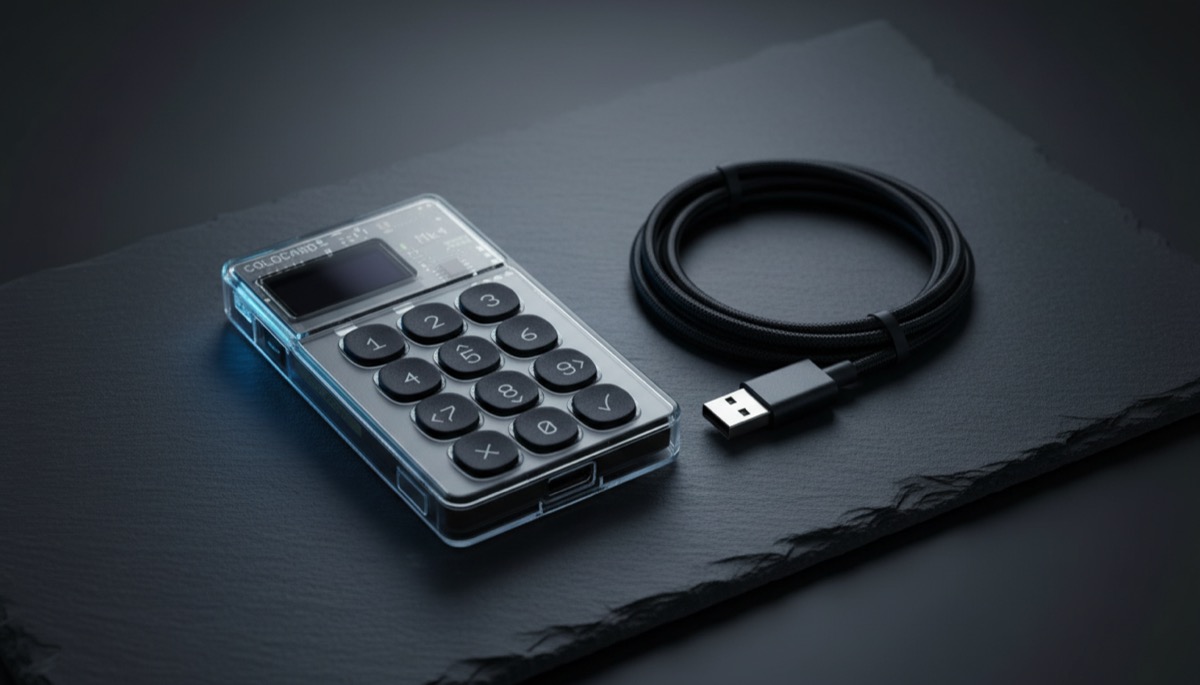
The MK4 features a sharp OLED screen and a full numeric keypad. Navigation uses the keypad numbers, the OK button (checkmark), and the X button (cancel). Spend a moment getting familiar with the button layout before proceeding.
Step 3: Accept Terms and Read Warnings
The Coldcard displays its terms of sale and a series of warnings about the nature of Bitcoin self-custody. Read through these carefully. The warnings explain that Coinkite cannot recover lost PINs or seed phrases, and that you are solely responsible for securing your backup. Press OK to acknowledge each screen.
This is not boilerplate to skip past. Understanding that there is no recovery service and no customer support backdoor is fundamental to using a hardware wallet properly. For deeper background on custody models, see our article on the evolution of Bitcoin self-custody.
Step 4: Set Your PIN
The Coldcard uses a two-part PIN system: a prefix and a suffix, separated by the device displaying two anti-phishing words. This design protects against both shoulder surfing and evil maid attacks.
How it works:
- Enter your PIN prefix (2-6 digits). Press OK.
- The Coldcard displays two unique words. These words are derived from your prefix and the device’s secure element. They will be the same every time you enter the correct prefix on this specific device. Memorize them.
- Enter your PIN suffix (2-6 digits). Press OK.
The anti-phishing words serve a critical purpose. If you power on your Coldcard and enter your prefix but see different words than expected, something is wrong — the device may have been swapped or tampered with. Do not enter your suffix.
Choose a PIN that is at least 4 digits for the prefix and 4 digits for the suffix (8 total). Avoid obvious patterns like 1234-5678. The Coldcard’s secure element enforces increasing delays between failed PIN attempts, making brute force impractical, but a strong PIN still matters.
Step 5: Generate Your New Seed
After setting your PIN, the Coldcard will ask how you want to generate your wallet seed. You have two options:
Option A: Device-generated seed. The Coldcard MK4 uses its TRNG (True Random Number Generator) built into the secure element, combined with additional entropy sources, to generate a 24-word BIP39 seed phrase. This is the faster option and is cryptographically sound.
Option B: Dice rolling for additional entropy. If you want verifiable randomness that does not rely solely on the device’s hardware, the Coldcard lets you roll physical dice and enter each result. You need at least 99 dice rolls for 256 bits of entropy (sufficient for a 24-word seed). The Coldcard combines your dice entropy with its own internal randomness, so even if your dice rolls have some bias, the result remains secure.
For most users, Option A is fine. For those who want maximum assurance that no hardware backdoor influenced their key generation, dice rolling provides that guarantee. The tradeoffs between different entropy sources are discussed in our complete guide to seed phrase security.
Step 6: Write Down Your 24-Word Seed Phrase
The Coldcard displays your 24-word seed phrase, a few words at a time. Write every word down on paper, clearly and in order. Number each word 1 through 24. Double-check your handwriting — a misread word during recovery will prevent access to your funds.
Use the paper backup as your working copy for the next step (verification). After verification, transfer the words to your metal backup device. The paper copy should then be stored separately or destroyed, depending on your security model.
Never type your seed words into a computer, phone, or any internet-connected device. Never photograph them. Never store them in a password manager or cloud service.
Step 7: Verify Your Seed Phrase on Device
The Coldcard will quiz you on your seed words to confirm you wrote them down correctly. It presents a word number and asks you to select the correct word from a list, or to type it in. This step catches transcription errors before they become catastrophic.
If you fail verification, the Coldcard will show you the words again. Take this step seriously. A seed phrase with even one wrong word is unrecoverable without specialized tools, and even then recovery is not guaranteed.
Step 8 (Optional): Set Up a BIP39 Passphrase
A BIP39 passphrase (sometimes called the “25th word”) adds an extra layer of protection. When enabled, your 24-word seed plus the passphrase derive a completely different set of keys than the 24 words alone. Without the passphrase, an attacker who finds your seed words will access a wallet with no funds (or you can leave a small decoy amount).
To set this up, navigate to Passphrase in the Coldcard menu. You can enter any string — it is case-sensitive and space-sensitive. The Coldcard will show you the fingerprint of the resulting wallet so you can confirm it matches in your desktop software.
The passphrase must be backed up separately from the seed phrase. If you forget it or lose it, the funds in the passphrase-protected wallet are gone. Our article on wallet security and passphrases covers the practical considerations of passphrase usage.
Step 9 (Optional): Set Up Trick PINs
The Coldcard MK4 supports Trick PINs — alternative PINs that trigger special behavior when entered. Two important ones:
Duress PIN: Opens a decoy wallet with a small balance. If someone forces you to unlock your Coldcard, you enter the duress PIN instead of your real PIN. The attacker sees a functional wallet and may believe they have accessed your funds. Load a small amount of Bitcoin into the duress wallet to make it convincing.
Brick PIN: Permanently destroys the secure element, making the device unusable. This is a last-resort option for extreme threat scenarios. Once triggered, the Coldcard cannot be recovered. Your funds remain safe as long as you have your seed phrase backup.
These features are configured under Settings > Login Settings > Trick PINs. Think carefully before enabling the brick PIN — accidental entry is permanent.
Step 10: Export Wallet to Sparrow via MicroSD
Insert your MicroSD card into the Coldcard. Navigate to Advanced/Tools > Export Wallet > Generic JSON. The Coldcard will write a file to the MicroSD card containing your wallet’s public key information (xpub). This file contains no private keys and is safe to transfer to your computer.
Remove the MicroSD card and insert it into your computer. This is the essence of air-gapped operation — the Coldcard never connects directly to your computer. All communication happens through the MicroSD card, and only public key data and unsigned/signed transactions are exchanged.
Step 11: Connect Sparrow Wallet (Import xpub)
Open Sparrow Wallet on your computer. Go to File > New Wallet, give it a name, and click Create Wallet. On the next screen, select “Airgapped Hardware Wallet” and then click “Import File.” Navigate to the JSON file on your MicroSD card and select it.
Sparrow will import the xpub and derive your wallet addresses. You should see the wallet fingerprint displayed — compare this with the fingerprint shown on your Coldcard under Advanced/Tools > View Identity. They must match. If they do not, something went wrong and you should start over.
Sparrow can now generate receive addresses, build unsigned transactions, and monitor your balance — all without the Coldcard being connected. The Coldcard is only needed to sign transactions.
Step 12: Receive Your First Transaction
In Sparrow, go to the Receive tab. You will see a Bitcoin address and QR code. Before sending any funds to this address, verify it on your Coldcard. Navigate to Address Explorer on the Coldcard and confirm the address matches what Sparrow displays.
This verification step is not optional. Malware on your computer could substitute a different address in Sparrow’s display. The Coldcard’s screen is the source of truth. Send a small test amount first, confirm it arrives, and then send larger amounts.
Step 13: Send a Test Transaction (PSBT Signing via MicroSD)
To send Bitcoin, build the transaction in Sparrow as normal — enter the destination address and amount. Instead of signing directly, Sparrow will create a PSBT (Partially Signed Bitcoin Transaction) file. Save this file to your MicroSD card.
Insert the MicroSD into your Coldcard. The device will detect the PSBT file and display the transaction details: destination address, amount, fee, and change address. Verify everything on the Coldcard screen. If it looks correct, approve and sign. The Coldcard writes the signed transaction back to the MicroSD card.
Move the MicroSD back to your computer, and Sparrow will load the signed transaction. Click “Broadcast” to send it to the Bitcoin network. At no point did the Coldcard’s private keys leave the device or connect to the internet.
Step 14: Firmware Update Process
Keeping your Coldcard firmware current patches security vulnerabilities and adds features. Check coldcard.com/downloads for the latest firmware. Download the .dfu file and verify its PGP signature using Coinkite’s public key.
Copy the verified firmware file to your MicroSD card. Insert it into the Coldcard and navigate to Advanced/Tools > Upgrade Firmware. The Coldcard will verify the firmware signature internally before applying the update. If the signature check fails, the update is rejected.
Firmware updates do not erase your seed phrase. However, it is good practice to verify you have accessible backups before any update. For a broader discussion of firmware security across devices, see our article on firmware updates and security best practices.
Air-Gapped vs USB Operation
The Coldcard MK4 supports both air-gapped (MicroSD only) and USB-connected operation. Here is how they compare:
Air-gapped (recommended): The Coldcard never physically connects to a computer. Power comes from a battery pack. Transaction data moves via MicroSD card. This eliminates entire categories of attack — USB-based exploits, malicious HID commands, and data exfiltration over the wire are all impossible. The tradeoff is a slightly slower workflow since you are physically moving the MicroSD card back and forth.
USB-connected: The Coldcard connects to your computer via USB-C and communicates with Sparrow directly. Transaction signing is faster since you do not need to shuffle the MicroSD card. However, this exposes the device to USB-layer attacks and requires trusting the USB stack on both the Coldcard and your computer. The Coldcard does implement USB restrictions (no mass storage mode, restricted HID protocol), but air-gapped operation removes the attack surface entirely.
For long-term cold storage, use air-gapped operation. For more frequent spending from a smaller balance, USB operation with Sparrow is a reasonable convenience tradeoff. Our comparison of cold storage versus hot wallet architectures helps frame when each approach is appropriate.
Security Tips
- Store the Coldcard separately from your seed backup. If both are in the same location, a single theft or disaster compromises everything.
- Use the duress PIN. Load a small amount of Bitcoin into the duress wallet. If coerced, enter this PIN and hand over the device. The attacker sees a real wallet with real funds.
- Consider a passphrase for large holdings. Your seed backup alone will not access the funds — the attacker also needs the passphrase, which is stored separately.
- Verify addresses every time. Always check receive and send addresses on the Coldcard screen, not just in Sparrow.
- Keep firmware updated. Subscribe to Coinkite’s announcements or check their site monthly for security updates.
- Use a dedicated MicroSD card. Do not reuse it for other devices. Label it and store it with your Coldcard.
- Consider multisig for larger amounts. A single-signature setup, even with a Coldcard, is a single point of failure. Our guide on transitioning from singlesig to multisig explains when and how to upgrade.
Troubleshooting Common Issues
Coldcard does not power on via USB-C: Try a different cable. Some USB-C cables are charge-only and do not provide sufficient power negotiation. The MK4 requires a cable that supports data connections (even if you are not transferring data, the power delivery handshake matters with some cables).
Sparrow does not recognize the wallet file: Ensure you exported as “Generic JSON” from the Coldcard, not one of the other formats. Also confirm you are importing into a new wallet in Sparrow, not trying to load it into an existing wallet.
Address mismatch between Coldcard and Sparrow: Check that Sparrow is using the correct derivation path. For native SegWit (recommended), the path should be m/84’/0’/0′. If you set up a passphrase on the Coldcard, make sure it is active when checking the address explorer.
PSBT file not detected by Coldcard: The file must have a .psbt extension and be in the root directory of the MicroSD card (not in a subfolder). Also verify the MicroSD card is formatted as FAT32, not exFAT or NTFS.
Forgot PIN: There is no recovery. After enough failed attempts with increasing delays, the Coldcard can optionally brick itself (if configured). Your funds are recoverable only if you have your seed phrase backup. You will need a new Coldcard to restore from seed.
Ledger vs Trezor: Best Hardware Wallet from the
Bitcoin Wallets & Self-Custody course.
Frequently Asked Questions
Can I use Coldcard MK4 with wallets other than Sparrow?
Yes. The Coldcard MK4 works with any wallet software that supports PSBTs and can import xpub data. Popular options include Electrum, Specter Desktop, Nunchuk, and BlueWallet (watch-only). Sparrow is recommended because of its strong air-gapped workflow support and detailed PSBT handling, but it is not required. The export menu on the Coldcard includes presets for multiple wallet applications.
Is the Coldcard MK4 seed generation truly random?
The Coldcard MK4 combines entropy from its Microchip ATECC608B secure element TRNG with additional noise sources on the main MCU. For users who want independent verification of randomness, the dice rolling feature lets you supply your own entropy, which the Coldcard mixes with its internal sources. This means even if the hardware RNG were compromised, your dice rolls ensure the seed is still random. Dice rolling is the gold standard for paranoid setups.
What happens if Coinkite goes out of business?
Your Bitcoin remains accessible because the Coldcard uses standard BIP39 seed phrases and standard derivation paths (BIP44/49/84/86). You can restore your wallet on any compatible hardware or software wallet. The firmware is open source, so the community could continue development. Your seed phrase is your true backup — the Coldcard is just a signing device. This is the fundamental principle of sound wallet architecture.
Should I use the Coldcard MK4 in a multisig setup?
For amounts that would significantly impact your financial life if lost or stolen, yes. A multisig configuration — typically 2-of-3 — means no single device compromise can result in loss of funds. The Coldcard MK4 works well in multisig setups with Sparrow, Specter, or Nunchuk as the coordinator. Pair it with devices from different manufacturers (like a Trezor or Passport) for hardware diversity. For single-signature setups on moderate amounts, the Coldcard alone with a passphrase provides a strong security profile.
You may also find our Bitcoin multisig guide guide useful.
{“@context”: “https://schema.org”, “@type”: “FAQPage”, “mainEntity”: [{“@type”: “Question”, “name”: “Can I use Coldcard MK4 with wallets other than Sparrow?”, “acceptedAnswer”: {“@type”: “Answer”, “text”: “Yes. The Coldcard MK4 works with any wallet software that supports PSBTs and can import xpub data. Popular options include Electrum, Specter Desktop, Nunchuk, and BlueWallet (watch-only). Sparrow is recommended because of its strong air-gapped workflow support and detailed PSBT handling, but it is not required. The export menu on the Coldcard includes presets for multiple wallet applications.”}}, {“@type”: “Question”, “name”: “Is the Coldcard MK4 seed generation truly random?”, “acceptedAnswer”: {“@type”: “Answer”, “text”: “The Coldcard MK4 combines entropy from its Microchip ATECC608B secure element TRNG with additional noise sources on the main MCU. For users who want independent verification of randomness, the dice rolling feature lets you supply your own entropy, which the Coldcard mixes with its internal sources. This means even if the hardware RNG were compromised, your dice rolls ensure the seed is still random. Dice rolling is the gold standard for paranoid setups.”}}, {“@type”: “Question”, “name”: “What happens if Coinkite goes out of business?”, “acceptedAnswer”: {“@type”: “Answer”, “text”: “Your Bitcoin remains accessible because the Coldcard uses standard BIP39 seed phrases and standard derivation paths (BIP44/49/84/86). You can restore your wallet on any compatible hardware or software wallet. The firmware is open source, so the community could continue development. Your seed phrase is your true backup — the Coldcard is just a signing device. This is the fundamental principle of sound wallet architecture.”}}, {“@type”: “Question”, “name”: “Should I use the Coldcard MK4 in a multisig setup?”, “acceptedAnswer”: {“@type”: “Answer”, “text”: “For amounts that would significantly impact your financial life if lost or stolen, yes. A multisig configuration — typically 2-of-3 — means no single device compromise can result in loss of funds. The Coldcard MK4 works well in multisig setups with Sparrow, Specter, or Nunchuk as the coordinator. Pair it with devices from different manufacturers (like a Trezor or Passport) for hardware diversity. For single-signature setups on moderate amounts, the Coldcard alone with a passphrase provides a …”}}]}